
Queue
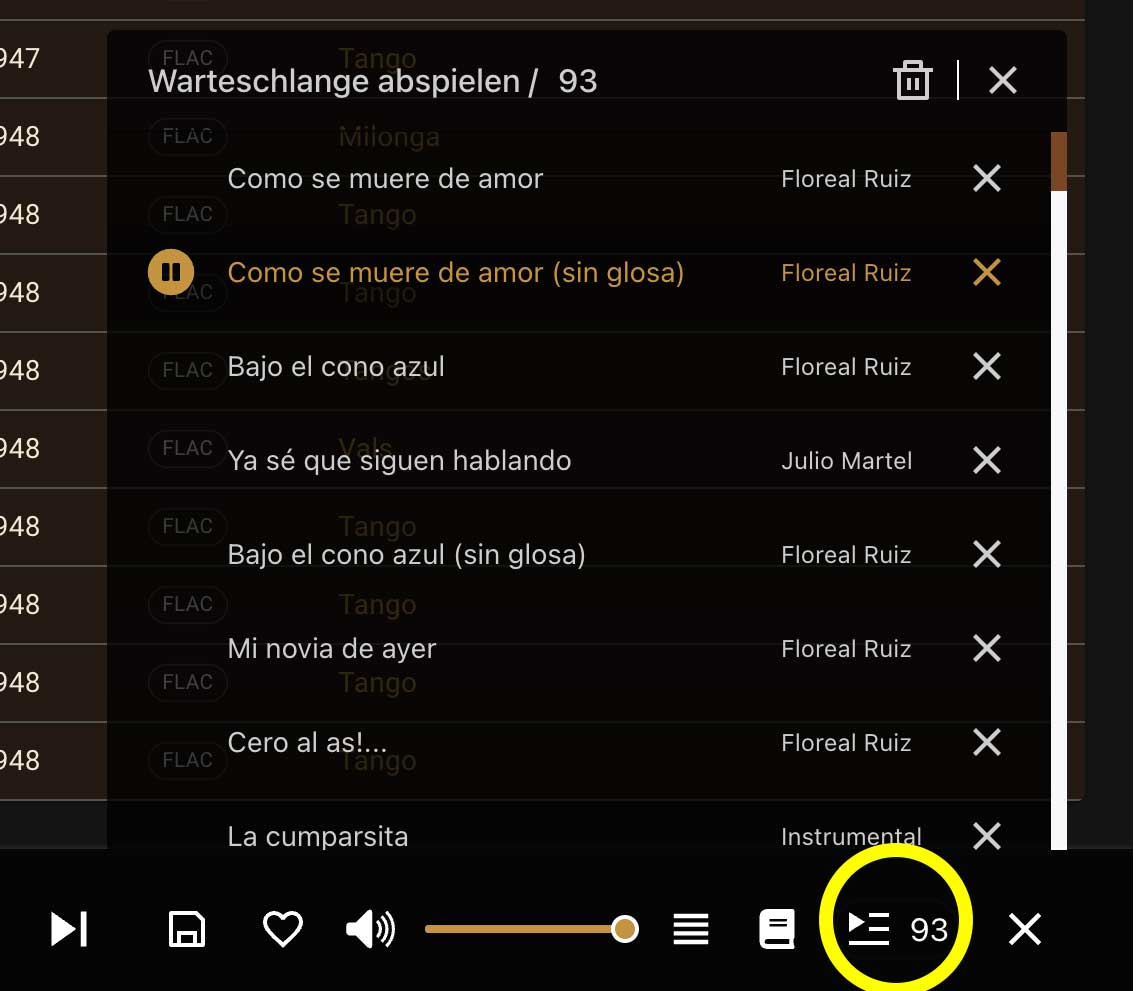
The queue contains all recordings that are scheduled to play next.
The queue icon in the player also displays the current number of recordings waiting in the queue.
Adding Recordings to the Queue
Section titled “Adding Recordings to the Queue”You can add individual recordings or entire lists to the queue.
Select the desired recordings and then choose “Play Next”.
This allows you to:
- add individual recordings
- add multiple selected recordings
- queue entire lists or search results
Changing the Order
Section titled “Changing the Order”The queue is played in the order shown on the screen.
You can move recordings to a different position at any time using drag and drop.
This allows you to decide exactly which recording will be played next.
Removing Recordings
Section titled “Removing Recordings”Recordings that are no longer needed can be removed directly from the queue.
Use the X next to the corresponding recording.
Clearing the Entire Queue
Section titled “Clearing the Entire Queue”To remove all recordings from the queue, use the trash can icon.
You can then build a new queue or add different recordings.
When Is the Queue Useful?
Section titled “When Is the Queue Useful?”The queue is ideal when you want to listen to several recordings in succession without creating a playlist.
Unlike a playlist, the queue exists only for the current listening session.